¶ Contents:
1. Cannot connect Tracker & Scanner
2. Cannot connect Tracker or Scanner
4. Tracker/Scanner Gimbal Disconnected during Calibration
5. Error Message: the device is connected but abnormal
¶ 1. Cannot connect Tracker & Scanner
Situation: The hardware is connnected, while it shows "Tracker Disconnected, Scanner Disconnected" on Revo Track Software.
Troubleshooting Steps:
1) Check the indicator light on the back of the Tracker
If the indicator light is red, turn on the power switch. When the right LED turns green and a short beep sounds, the software is to be connected. If the lights show correctly while the device is not connected yet, check your PC's connection port (USB 3.0 or above). Ensure that your PC is compatible with the system requirements of Trackit, and you have downloaded the latest software.
2) Check the settings on your PC
① Check drivers and devices recognition
Go to Device Manager > Camera on your PC, and check if the listed items are read as Scanner-DepthCam, Scanner-RGBCam, Tracker-DepthCam.
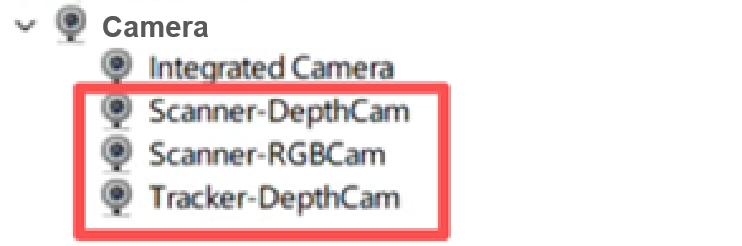
If the cameras displayed are not shown as above, please check the Device Manager for any read as Unknown Devices/PCI Devices/USB Video Device/Class for rockusb devices, or other devices marked with a yellow exclamation mark ⚠️. Then, follow the steps below to update the driver:
Right-click on Unknown Devices/PCI Devices/USB Video Device/Class for rockusb devices, and select Update Driver.
Click Browse my computer for devices
Click Let me pick from a list of available drivers on my computer
Click USB Composite Device or Camera
Click Next and update the driver
Once the update is complete, check the Device Manager > Camera again. The cameras should now appear as Scanner-DepthCam, Scanner-RGBCam, Tracker-DepthCam.
If the update fails, right-click to uninstall the driver. Restart your computer, and Windows will automatically reinstall the driver once connected to the internet.
② Check camera settings on your PC
Click onPrivacy & Security > Camera, allow camera and application access, and allow desktop applications to access your camera.
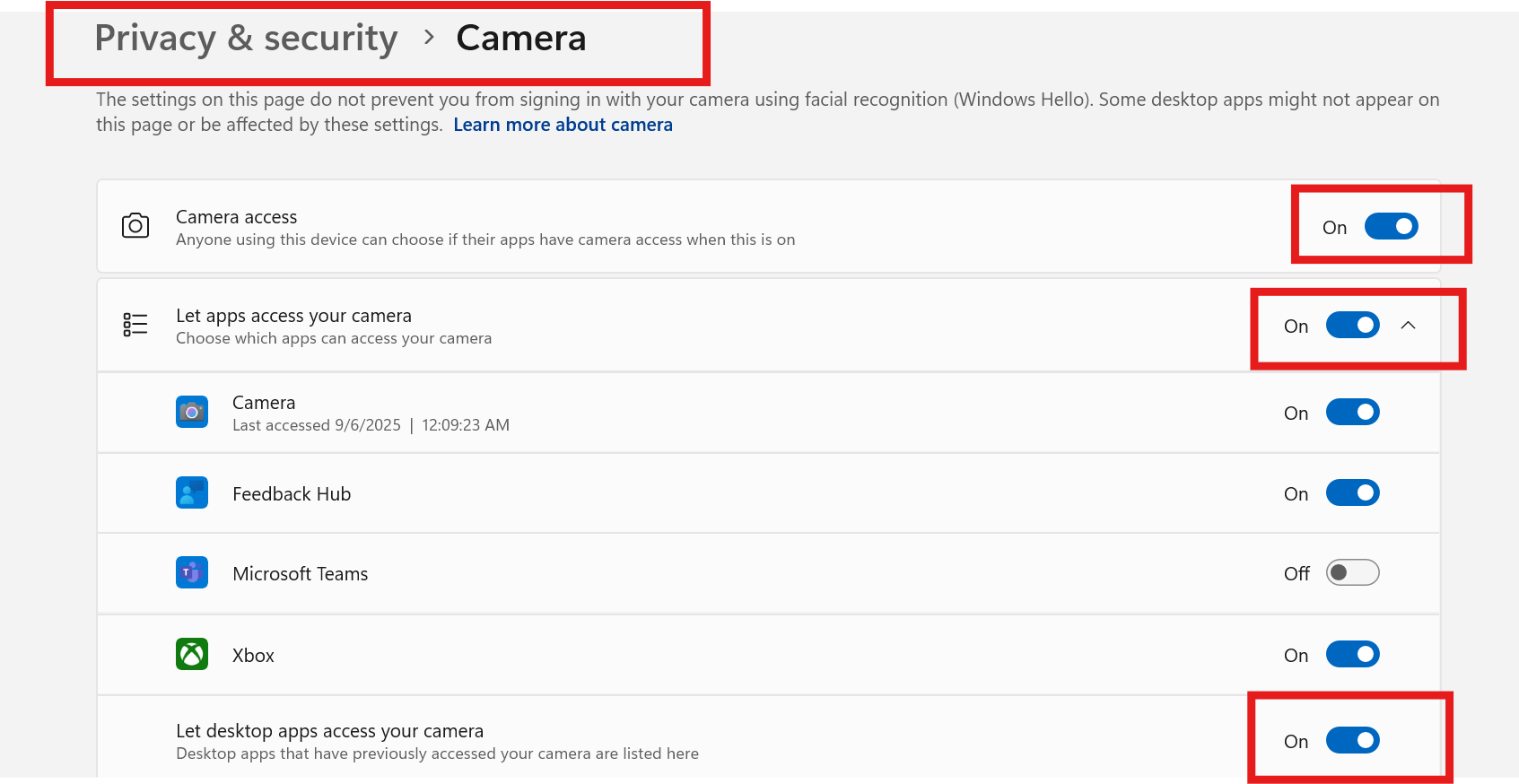
Open the camera device settings and ensure that the three cameras are displayed (Scanner-DepthCam, Scanner-RGBCam, and Tracker-DepthCam).
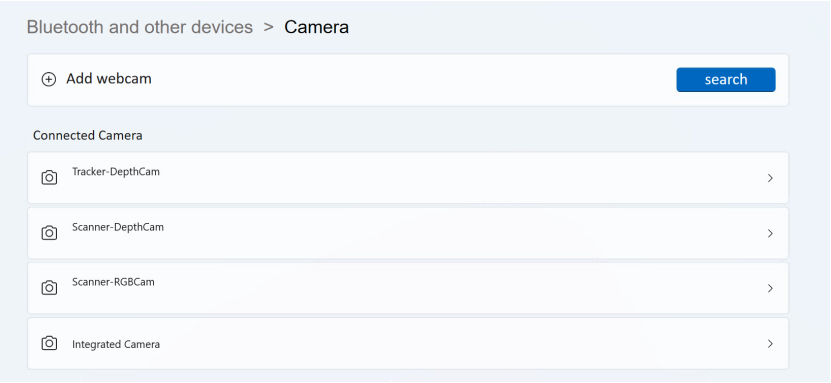
Open the camera on your PC, click Settings, enable the "Show advanced controls for photos and videos" option, and set "Default settings" to "Use system settings".
③ Check if Revo Track is blocked by the firewall
Go to System and Security > Windows Defender Firewall.
Click Allow an app through Windows Firewall, look for Revo Track in the list.
Make sure both private and public networks are checked.
If Revo Track is not listed, click Allow Another App to manually add the Revo Track main program.
④ Run Revo Track as administrator
Right-click the Revo Track icon, right--click and select Run as Administrator to avoid insufficient permissions that may prevent access to USB/camera devices.
⑤ Antivirus/security tools on PC
Temporarily disable security software such as 360 Safe Guard, Tencent PC Manager, Huorong, McAfee, or Kaspersky, and try again.
⑥ Restart Trackit and PC
Unplug the PC cable (blue) and restart the Tracker. Once it's powered on and a beep sounds, reconnect the PC cable to your computer and check whether it's connected.
⑦ Uninstall the driver and restart
Go to Device Manager > Cameras, right-click and select Uninstall Driver for each of the three cameras one by one.
Unplug the PC Cable (blue) from both the PC and Tracker's ends.
Reconnect Trackit and restart the Revo Track software.
⑧ If other external devices (such as a USB Flash Drive) are connected to the USB ports on your PC, unplug them first, then reconnect the PC Cable (blue) to the computer and check whether the Scanner connects properly.
3) If all the steps above do not work, please try to use another computer, or send an email to customer@revopoint3d.com for further help.
¶ 2. Cannot connecct Tacker or Scanner
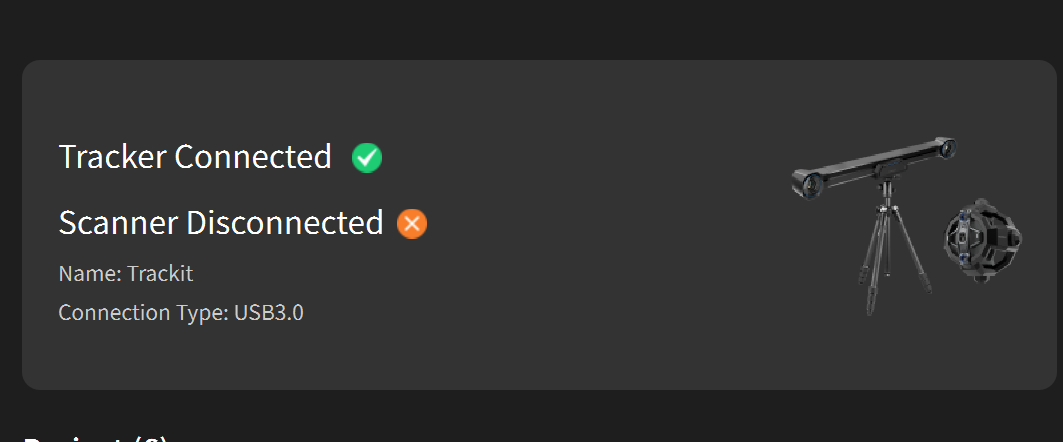
Situation: The hardware is connnected, while it shows Tracker or Scanner disconnected on Revo Track.
Troubleshooting Steps:
1) If it shows Scanner Disconnected, tighten the screws at both ends of the Scanner cable, and ensure the indicator light on the Scanner remains green.
2) If it shows Tracker Disconnected, unplug the Scanner cable and check whether it shows Tracker connected now in the software. If these two steps don't work, try other solutions below.
3) Check the settings on your PC
If other external devices (such as a USB Flash Drive) are connected to the USB ports on your PC, unplug them first, then reconnect the PC cable (blue) to the computer and check whether it connects properly.
① Check drivers and devices recognition
Go to Device Manager > Cameras on your PC, check if the listed items are read as Scanner-DepthCam, Scanner-RGBCam, Tracker-DepthCam.
If the cameras displayed are not shown as above, please check the Device Manager for any read as Unknown Devices/PCI Devices/USB Video Device/Class for rockusb devices, or other devices marked with a yellow exclamation mark ⚠️.Then, follow the steps below to update the driver:
Right-click on Unknown Devices/PCI Devices/USB Video Device/Class for rockusb devices, and select Update Driver.
Click Browse my computer for devices
Click Let me pick from a list of available drivers on my computer
Click USB Composite Device or Camera
Click Next and update the driver
Once the update is complete, check the Device Manager > Camera again. The cameras should now appear as Scanner-DepthCam, Scanner-RGBCam, Tracker-DepthCam.
If the update fails, right-click to uninstall the drive. Restart your computer, and Windows will automatically reinstall the driver once connected to the internet.
② Check camera settings on your PC
A. Click onPrivacy & Security > Camera, allow camera and application access, and allow desktop applications to access your camera.
B. Go to the camera device settings, and ensure that the three cameras are displayed (Scanner-DepthCam, Scanner-RGBCam, and Tracker-DepthCam).
C. Open the camera on your PC, click Settings, enable the "Show advanced controls for photos and videos" option, and set "Default settings" to "Use system settings".
③ Missing Driver
If the issue persists, it may be due to a missing driver: Intel HID Event Filter Driver. It's recommended to download and install the official driver from your computer brand's official website, then try to connect and check again.
4) Restart the Trackit and PC
For steps above, please restart the PC and devices after each update. Unplug the PC cable (blue) and restart Tracker. Once it's powered on and a beep sounds, reconnect the PC cable to your computer and check whether it's connected.
5) If all the steps above do not work, please try to use another computer, or send an email to customer@revopoint3d.com for further help.
¶ 3. Unstable Connection Issues
Situation: Tracker and Scanner are connected successfully, but the software frequently switches between connected and disconnected status during use, causing an unstable connection.
Troubleshooting Steps:
1) Check cable connection
Check all the cables and screws, unplug and replug them to restart and check.
2) Disable Firewall and antivirus/security tools
Disable the computer's firewall and antivirus software, then observe the connection status again.
3) Confirm hardware requirements and USB port
Ensure that the computer meets the system requirements of Trackit. The ports should be USB 3.0 or above. If using an adapter, make sure it also supports USB 3.0 or above transfer.
4) If all the steps above do not work, please try to use another computer, or send an email to customer@revopoint3d.com for further help.
¶ 4. Tracker/Scanner Gimbal Disconnected during Calibration
Situation: Tracker Gimbal or Scanner Gimbal is disconnected in the calibration interface.
.png)
Troubleshooting Steps:
1) Check cables and connections
Confirm the two yellow cables are tightened and screwed correctly. Restart Trackit first. Reconnect the two yellow gimbal cables. Once it's powered on and a beep sounds, reconnect the PC cable to your computer and check whether it's connected.
2) Check the indicators on the gimbal
The blue indicator light is located on the right of the gimbal's Type-C port, and it shows:
Solid on = connected to the software
Flashing = powered on but not yet connected
If the light does not turn on at all, please switch the two yellow cables for connection and check if it's a cable issue. Or plug the same cable to the two gimbals respectively to check if it's a gimbal issue.
3)If the light shows blue correctly but the gimbal is still not connected, all the above steps cannot help; please send an email to customer@revopoint3d.com for further help.
¶ 5. Error Message: the device is connected but abnormal
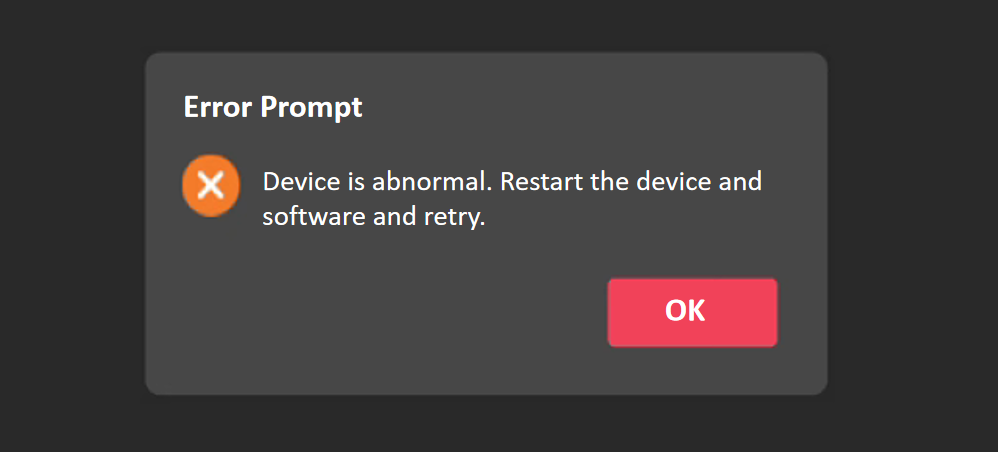
1) Click "OK", unplug cables, reconnect your device, and restart the Revo Track software to try again. If it is not resolved, try the solution 2.
2) Check camera settings on your PC
A. Click on Privacy & Security > Camera, allow camera and application access, and allow desktop applications to access your camera.
B. Open the camera device settings and ensure that the three cameras are displayed (Scanner-DepthCam, Scanner-RGBCam, and Tracker-DepthCam).
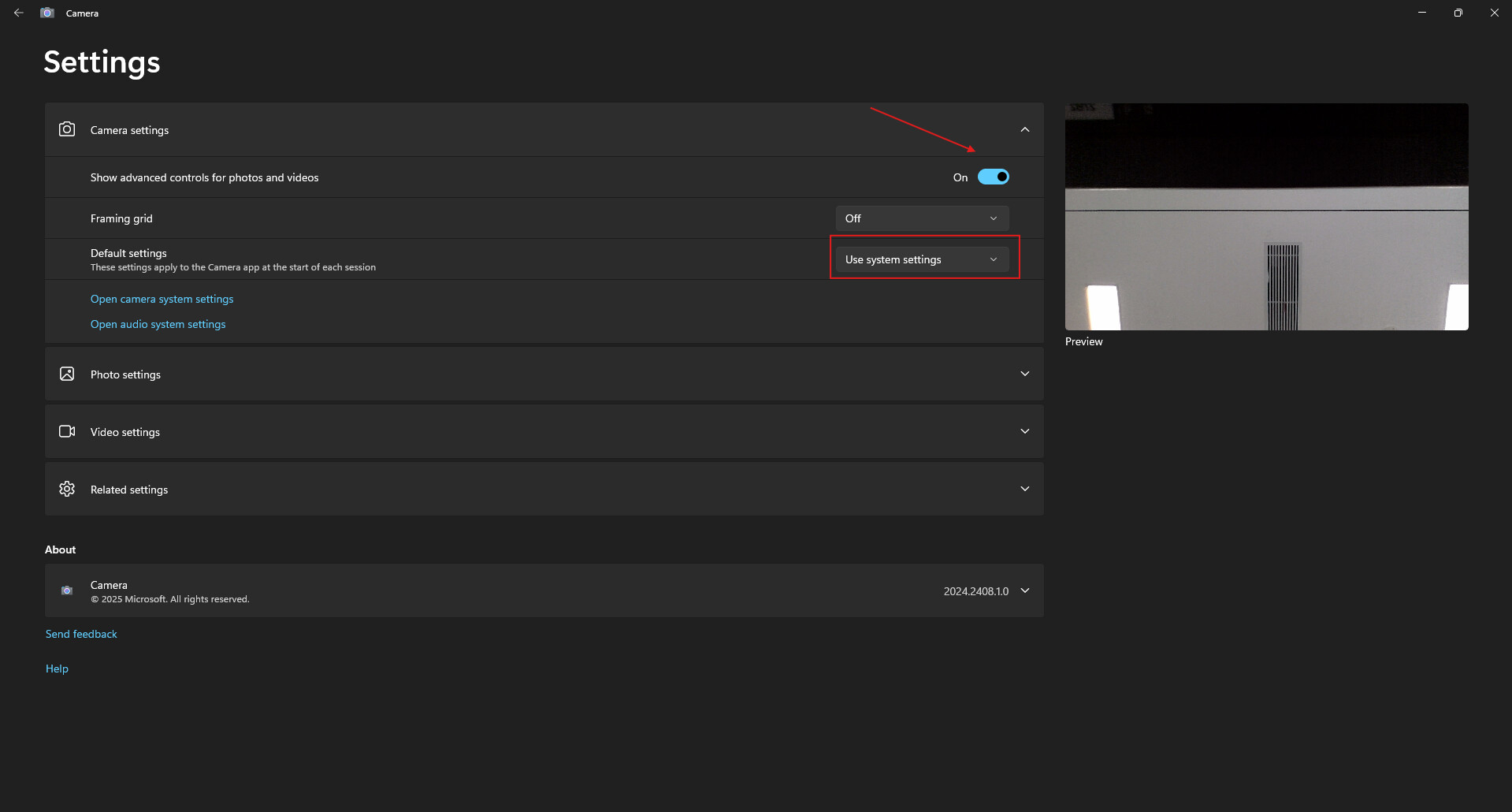
C. Open the camera on your PC, click Settings, enable the "Show advanced controls for photos and videos" option, and set "Default settings" to "Use system settings".
3) Check drivers and devices recognition
Go to Device Manager > Camera on your PC, check if the listed items are read as Scanner-DepthCam, Scanner-RGBCam, Tracker-DepthCam.
① If the cameras displayed are not shown as above, please check the Device Manager for any read as Unknown Devices/PCI Devices/USB Video Device/Class for rockusb devices, or other devices marked with a yellow exclamation mark ⚠️.Then, follow the steps below to update the driver:
Right-click on Unknown Devices/PCI Devices/USB Video Device/Class for rockusb devices, and select Update Driver.
Click Browse my computer for devices
Click Let me pick from a list of available drivers on my computer
Click USB Composite Device or Camera
Click Next and update the driver
Once the update is complete, check the Device Manager > Camera again. The cameras should now appear as Scanner-DepthCam, Scanner-RGBCam, Tracker-DepthCam.
If the update fails, right-click to uninstall the drive. Restart your computer, and Windows will automatically reinstall the driver once connected to the internet.
② If the cameras are read normally as Scanner-DepthCam, Scanner-RGBCam, Tracker-DepthCam on Device Manager, but I still get the error of abnormal devices.
Step 1: Right-click and select Update Driver for each of the three cameras one by one.
Click Browse my computer for devices
Click Let me pick from a list of available drivers on my computer
Click USB Composite Device or Camera
Click Next and update the driver
Once finished, restart Revo Track and check again.
Step 2: If it is not resolved, right-click and select Uninstall Driver for each of the three cameras one by one.
Click Uninstall.
Unplug the Tracker from both the PC and the power socket.
Reconnect Trackit and restart the Revo Track software.
Once connected, please check again.
4) Restart the Trackit and PC
After the drivers are updated, restart Trackit first. Once it's powered on and a beep sounds, reconnect the PC cable to your computer and check whether it's connected.
5) Check drivers and devices recognition
If the light shows blue correctly but the gimbal is still not connected, all the above steps cannot help; please send an email to customer@revopoint3d.com for further help.