¶ Contents:
1. MetroX Series/ MetroY Series/ INSPIRE 2 USB Connection Fails
2.I have a problem connecting the scanner (Error Messages)
3.I cannot find the Wi-Fi of INSPIRE 2 on my PC
¶ 1. MetroX Series/ MetroY Series/ INSPIRE 2 USB Connection Fails
1) Ensure power supply and PC requirements
Please first confirm that the scanner is properly powered on (the indicator light on the back of the scanner turns green) and your computer meets the following requirements:
① Make sure your computer meets the minimum system requirements, the USB port supports USB 3.0 or above, and you are using the cables provided in the box.
② If other external devices (such as a USB Flash Drive) are connected to the USB ports on your PC, unplug them first, then reconnect the PC cable to the computer and check whether the scanner connects properly.
③ If you are using an adapter, make sure it supports USB 3.0 data transfer speed and provides power delivery.
2) Check drivers on your PC
If the above checks have been completed but the issue persists, please follow the steps below to check drivers:
① Check driver installation and device recognition:
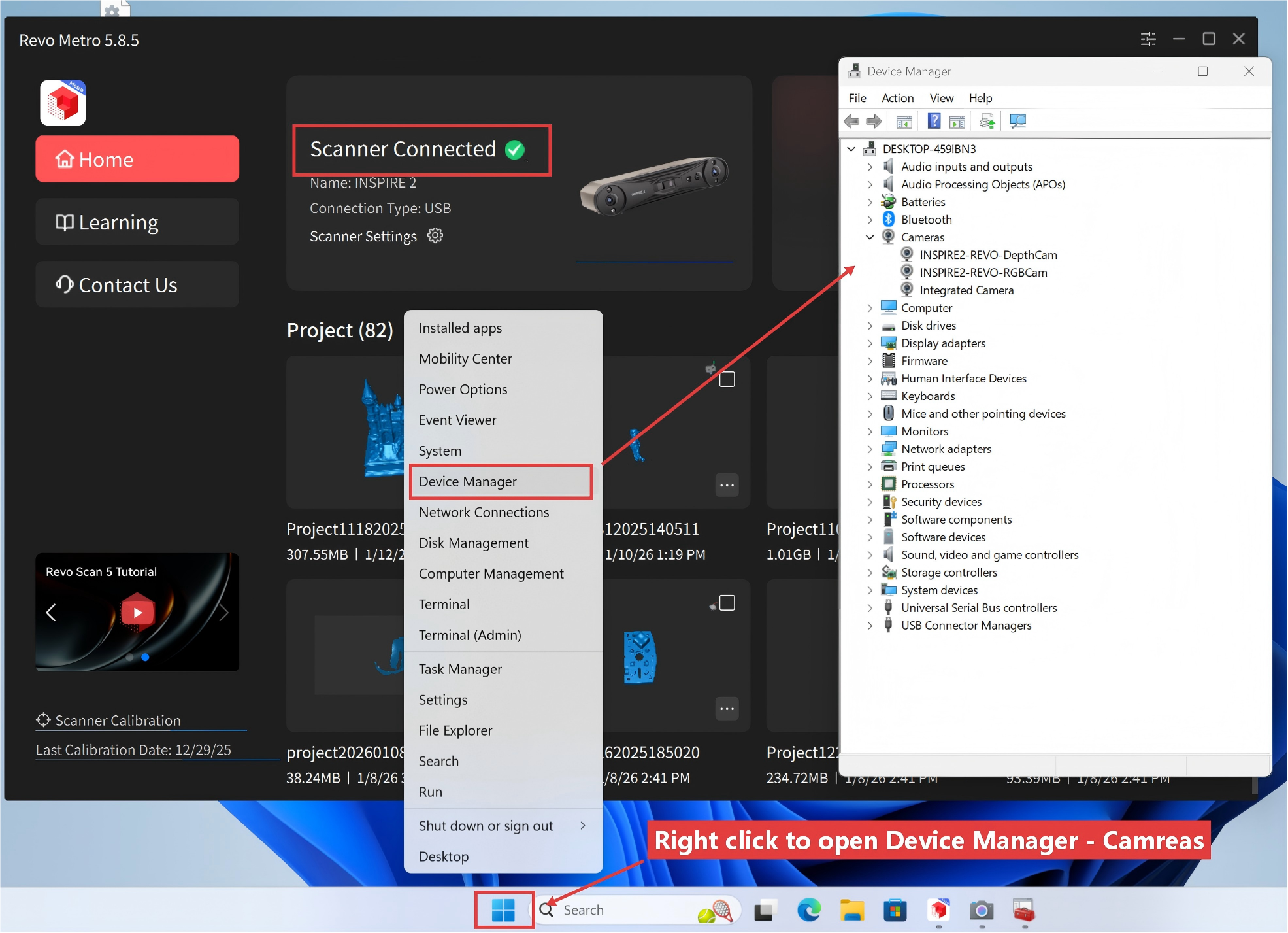
Open Device Manager, and the Camera devices should be listed as follows:
For regular scanners, there are two devices (DepthCam and RGBCam).
For scanners without a color scan function, there is only DepthCam.
② If the cameras displayed are not shown as above, please check the Device Manager for any read as Unknown Devices/PCI Devices/USB Video Device/Class for rockusb devices, or other devices marked with a yellow exclamation mark ⚠️.
If so, unplug the cable, restart the computer, then reconnect and check again.
③ If the device still shows a yellow exclamation mark, right-click it → Update driver → Browse my computer for devices →Let me pick from a list of available drivers on my computer → Select USB Composite Device or Camera to update.
④ If updating fails, right-click the device → Uninstall driver → restart your computer.
Windows will automatically reinstall the driver once connected to the internet.
3) Check system permissions on your PC
After the steps above, please also check your computer’s permission settings:
① Camera Privacy Settings
Go to Settings → Privacy → Camera, and check:
“Allow apps to access your camera” is turned ON.
“Allow desktop apps to access your camera” is turned ON.
Then, open your Camera Settings and make sure the following devices are detected:
Scanner-DepthCam, Scanner-RGBCam
(Device quantity may vary by model.For regular scanners are two, and for scanners without a color scan function, there is only one.)
② Firewall settings
Check if the connection is blocked by the firewall. You can temporarily disable the firewall or perform the following steps:
Go to Control Panel → System and Security → Windows Defender Firewall.
Click “Allow an app through Windows Defender Firewall” on the left.
Look for your scanner software (eg, Revo Track, Revo Metro, or Revo Scan) in the list.
Ensure both Private and Public functions are selected.
If not listed, click “Allow another app” to manually add the scanner software.
③ Run as administrator
Right-click the software (eg, Revo Track / Revo Metro / Revo Scan) → Run as administrator, to prevent insufficient permission from blocking access to USB or camera devices.
④ Disable antivirus or security software
Temporarily disable antivirus software such as 360 Total Security, Tencent PC Manager, Huorong, McAfee, or Kaspersky.
Some security programs may block the scanner software from accessing camera data or starting related services.
4) Error Notice - Camera Error
If the scanner is connected properly but a camera error message appears when creating a new project, please check with the following steps:
① Make sure your computer meets the minimum system requirements, the USB port supports USB 3.0 or above, and you are using the original cables provided with the device.
② Verify that the drivers are correctly recognized as described in Step 2.
If they are, disconnect the scanner, restart the computer, and try again.
If the problem persists, right-click and uninstall the camera drivers, then restart the computer and check again.
5) If all of the above steps do not help and the issue remains, please try with another PC (if driver updates fail, you can also download related drivers from your computer manufacturer’s official website), or contact customer@revopoint3d.com for technical assistance.
¶ 2. I have a problem connecting the scanner (Error Messages)
If you see an error message as:
Camera Error
Could not obtain camera information, please restart the scanner.
Or error message as:
Attention
Startup failed. Reconnect the scanner and retry
Or error message as:
Failed to set camera parameters.
Click "OK" to exit this calibration. Please reconnect your device and try again.
Please go to Device Manager - Camera, check if the scanner is read as DepthCam and RGBCam
Situation 1: If the RGBCam is read as USB Video Device
Step 1, please follow the steps below to update the driver
Right-click on USB Video Device and select Update driver
Click Browse my computer for devices
Click Let me pick from a list of available drivers on my computer
Click USB Video Device
Click Next and update the driver
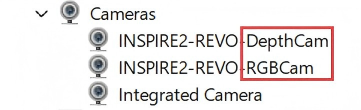
Once the update is complete, check the Device Manager - Camera again. The scanner should now appear as DepthCam and RGBCam.
Step 2, unplug the scanner from both the PC and the power socket
Step 3, restart the Revo Metro software
Step 4, plug the scanner back into the PC. The issue should now be resolved
Situation 2: If the scanner is recognized as DepthCam and RGBCam but the error messages still occur
Please follow the steps below to resolve the issue:
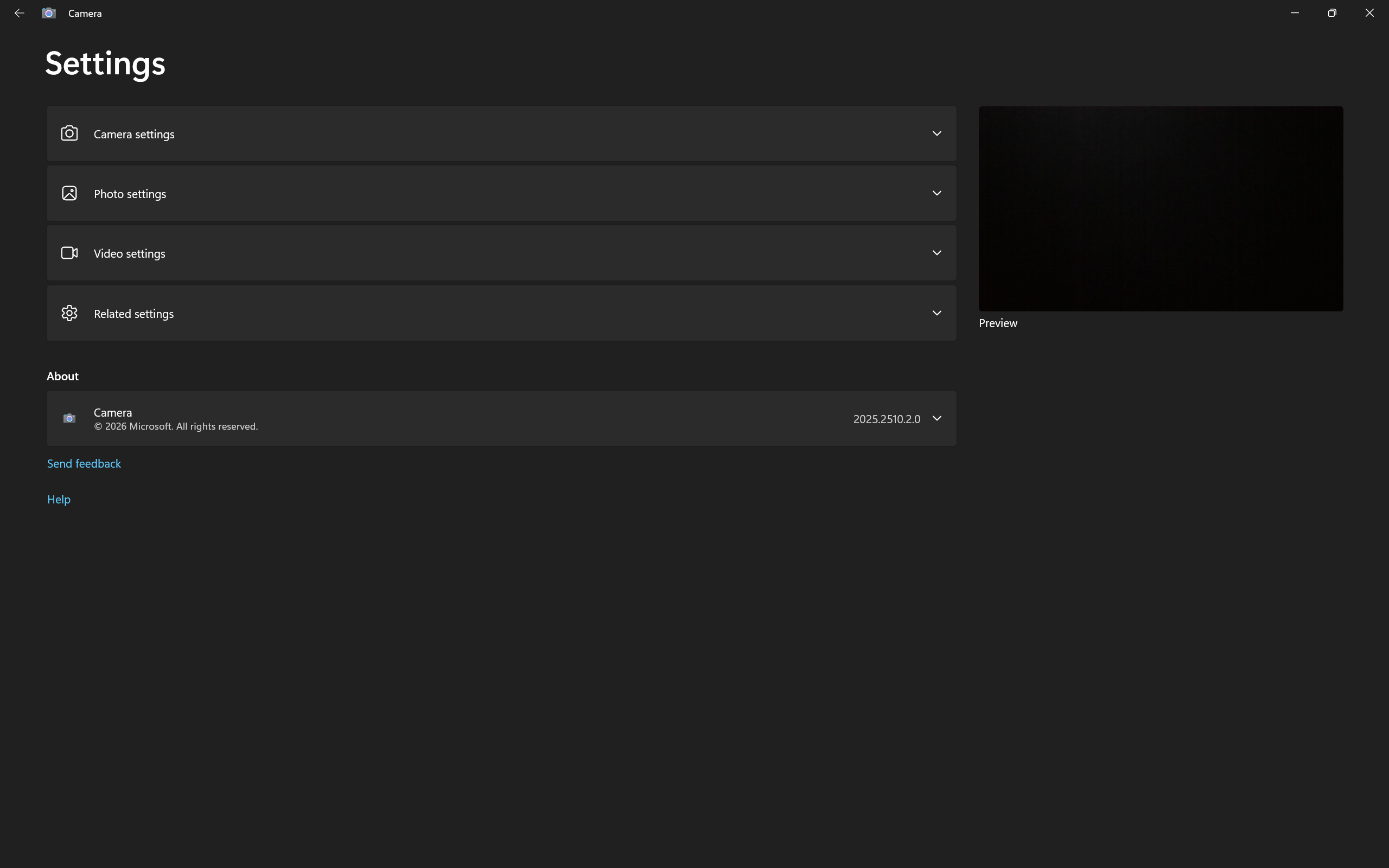
Step 1, search for "Camera" in your computer settings and open the Camera settings. Then, click "Settings".
Step 2, enable the "Show advanced controls for photos and videos" option, and set "Default settings" to "Use system settings".
¶ 3. I cannot find the Wi-Fi of INSPIRE 2 on my PC
Situation: Using the 2-in-1 Mobile Cable to connect the scanner and Power Bank Handle, or use the USB Type-C to Type-C Data Cable to connect the scanner and power socket, and the scanner's indicator 2 turns solid green, it's powered. Then, search for a Wi-Fi network called INSPIRE2-REVO-XXXXXXXX in your PC's Wi-Fi settings, but it should not be in the list.
Solution: Check and modify the Wi-Fi channels of your INSPIRE 2
Step 1: Unplug the 2-in-1 cable from the scanner, plug in the long USB Type-C to C Data Cable, and connect the scanner to the Revo Metro Software on your PC.
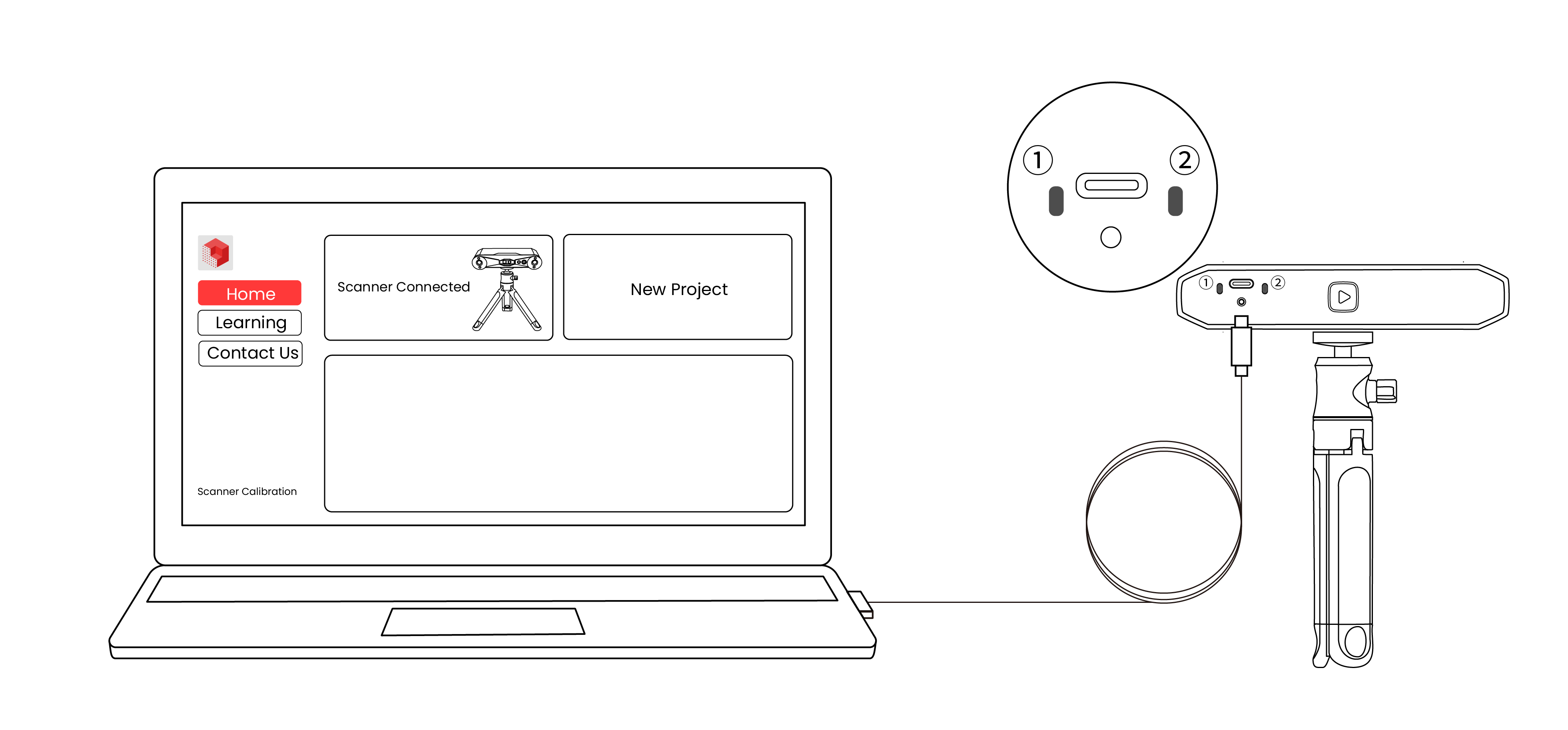
Step 2: Modify and set the region and SSID in the Revo Metro Software.
Open the Revo Metro software.
Click Scanner settings - Wifi Settings.
Select your region and set the password.
Confirm and unplug the cables from the PC, connect the scanner to the power bank/power socketagain. Then, try Wi-Fi connection again to check if its Wi-Fi can be found on your PC.

Step 3: Change the channel of our INSPIRE 2 with our tool.
If you have already selected the region and set the password of the SSID, but the Wi-Fi still cannot be found on your PC, please use our tool to change the Channel of INSPIRE 2.
Connect INSPIRE 2 via USB cable to your PC.
Click the link below and click icon on the left of the page to download and unzip the package on your PC.
Tool Package:
https://drive.google.com/file/d/1HpQFTLpDBjKW7YQGMmn0JDNQfx_UI_2R/view?usp=sharing
Follow the steps in the file "readme-English" to check and modify the Channel.
It's recommended to set the channel of INSPIRE 2 to be the same as the one that your other electric devices connect to usually.
Once finished, unplug the cables from the PC, connect the scanner to the power bank/power socket and try Wi-Fi connection again to check if it can be found on your PC.
How to connect your INSPIRE 2 via Wi-fi? Refer to the guidance in the user manual.