¶ 1.About This Manual
Welcome to the Revopoint 3D scanner user manual! This manual provides operating instructions for the POP 4. Please read the manual before your first use to ensure you use this scanner correctly and safely. If needed, you can click on any topic in the navigation bar to quickly jump to that section.
Manual Download
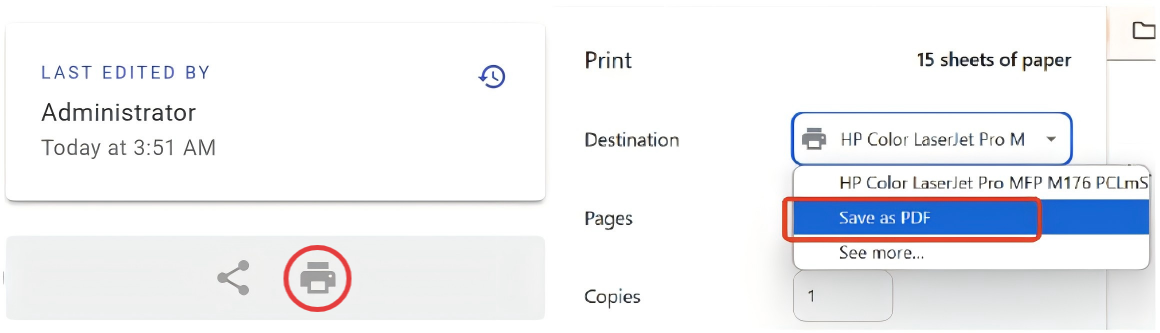
If you need a PDF manual, click the Print Format button at the bottom of the navigation bar on the left side of the manual, and select "Save as PDF" from the options.
¶ 1.1 Read Before Using
- This manual is specifically for POP 4 3D Scanner.
- This manual is frequently updated to cover the product's latest features and improvements.
- Verify that all components in your box are complete and undamaged before first use.
¶ 1.2 Warnings
- This product uses a Class 1 laser projector. Avoid looking directly at it at close range! Please refer to the Class 1 laser standard document for details. To prevent laser reflection, avoid placing reflective surfaces like mirrors or glass in the path of the laser beam.
- Please keep the scanner away from water and other liquids, and avoid dropping or bashing it.
- This product's operating environment temperature range is 0°C to 40°C (32°F to 104°F). Please use the product only within this range.
- Do not remove, disassemble, or modify any part of the product. Any modifications to the product may render it non-compliant with safety standards.
- Keep this product out of the reach of children.
¶ 1.3 Online Resources



¶ 2.About the Product
¶ 2.1 What's in the Box
装箱图片
¶ 2.2 Product Profile
¶ 3.Software Download and Usage
The POP 4 scanner must be used with the Revo Scan 6 (PC) or Revo Scan 6 (Mobile) software. Before use, please download and install the software.
|
Software |
Revo Scan 6 (PC) |
Revo Scan 6 (Mobile) |
|
Download Channel |
or Mobile app store |
|
|
Software Requirements |
Minimum PC Requirements: Windows:Win 10/11 (64 bit)
macOS: macOS 11.0 or better
Recommended PC Requirements: Windows:Win 10/11 (64 bit)
macOS: macOS 11.0 or better
|
Mobile Requirements: Android System version: Android 9.0 or better
iPhone: Models after iPhone X
iPad: 10th Gen iPad or later |
If you need to learn more about operating this software, please refer to the Revo Scan 6 Software User Manual.
¶ 4.Scanner Connection
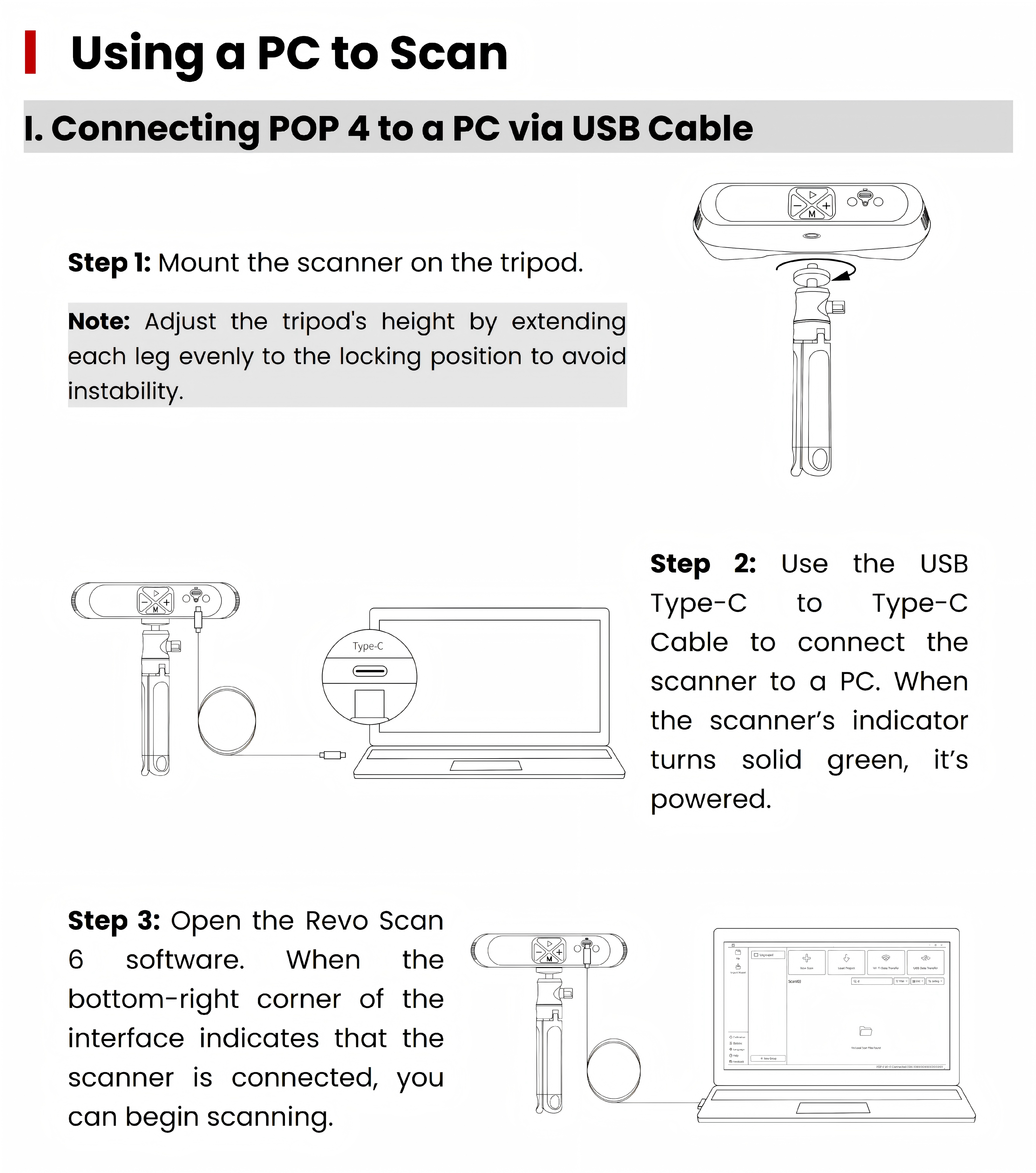
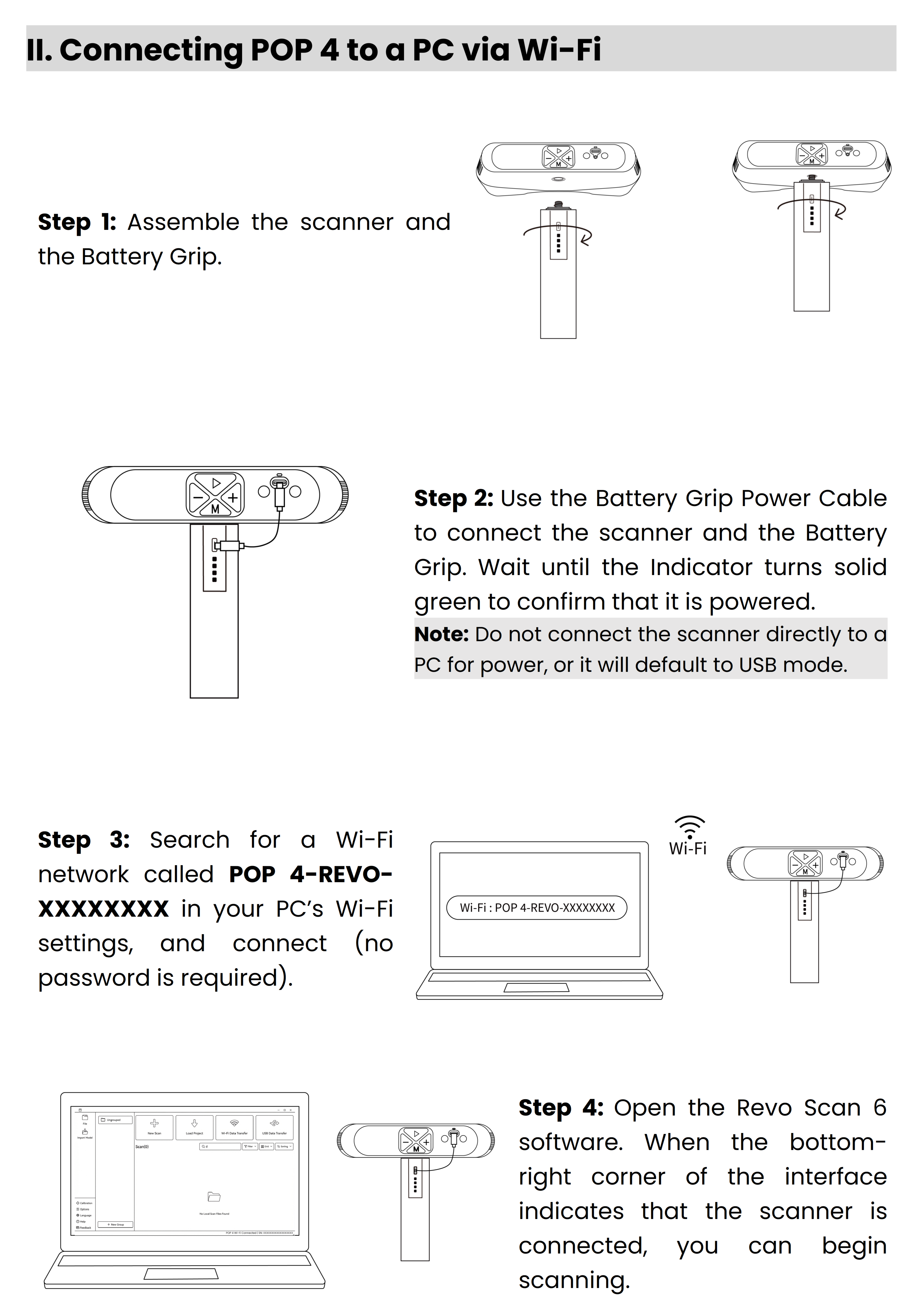
To ensure optimal scanning results, please connect the scanner directly to your PC and avoid using a USB hub.
¶ 5.Scanner Calibration
¶ 5.1 Preparation Before Calibration
① Use a USB Type-C to Type-C cable to connect the scanner to the computer, then launch Revo Scan 6 on the PC.
Note:Warm up the device for 10 minutes before calibration to ensure optimal accuracy.
② Place the Calibration Board, then click Calibration at the bottom-left of the home page to enter the calibration process.
③ Adjust the ambient lighting to avoid an environment that is too dark or too bright.
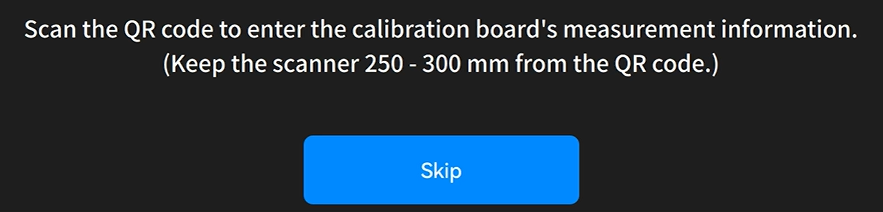
④ Scan the QR code on the back of the Calibration Board to import its metrology data.
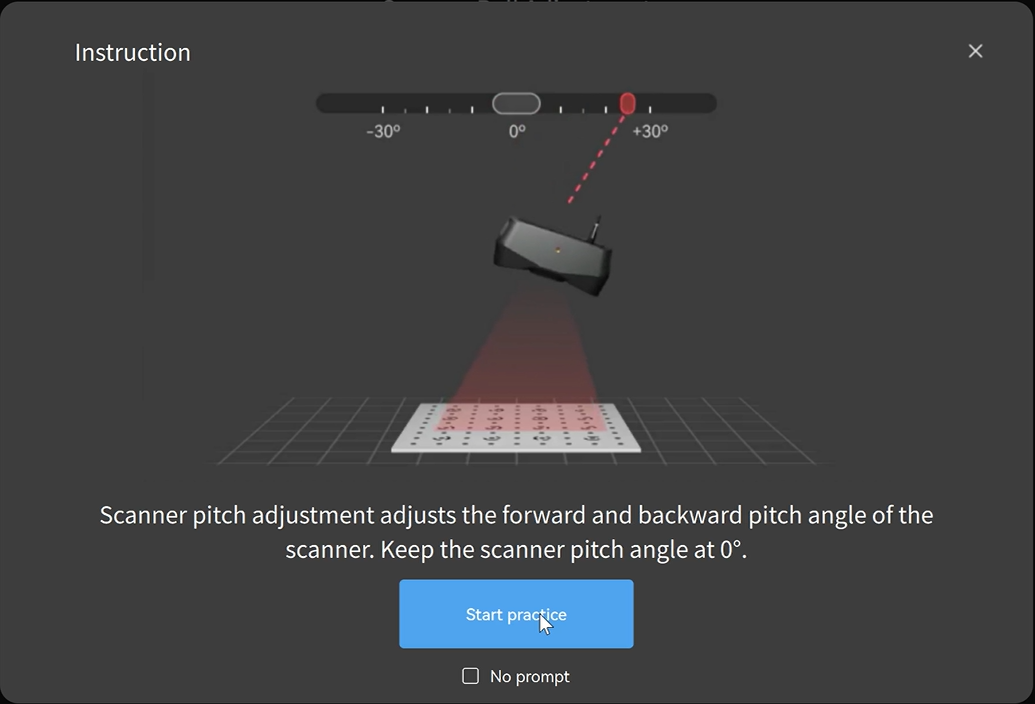
⑤ Place the calibration board. Follow the on-screen operation guide diagram to perform the calibration practice.
⑥ After completing the practice, click "Start Calibration" to enter the scanner Accuracy Check page and decide whether to continue calibration based on the accuracy results.
¶ 5.2 Calibration
① Following the reference image on the left and the corresponding sliders, adjust the camera tilt angle, pitch angle, and height.
② Follow the progress bar at the top and gradually complete data collection from five angles: horizontal, left, right, front, and back.
③ Once the calibration accuracy meets the requirements, please save the calibration results.
④ Click "Complete" to return to the start page. The camera will restart automatically, and calibration is complete.
¶ 6. Mode Selection
The POP 4 features 4 Tracking Modes and 5 Scan Modes. The Tracking Mode determines how each frame aligns, while the Scan Mode governs data acquisition. Select the optimal combination based on your object's features, required detail, and application scenario.
¶ Tracking Mode
| Tracking Mode | Applications | Typical Objects |
|---|---|---|
 |
Suitable for objects with distinct geometric features and rich surface contours. Alignment and stitching can be completed based on the object's own structural features. | Human bodies, heads, statues, action figures, dolls, shoes, plaster busts, decorative ornaments, etc. |
 |
Suitable for flat, symmetrical, or geometrically featureless objects, achieving alignment by recognizing physical marker points. | Cubes, cylinders, spheres, regular box-shaped objects, flat panels, pipes, tanks, smooth casings, etc. |
 |
Suitable for large, featureless objects. Global marker points are used to improve stitching stability during large-area scanning. | Automotive parts, large sculptures, furniture, large moulds, large enclosures, equipment housings, door panels, sheet metal parts, etc. |
 |
Suitable for objects with distinct color textures, patterns, printed information, or natural grains. It aligns data based on surface visuals rather than geometry, making it ideal for shapes with low geometric detail but rich color variation, patterns, or text. | Painted models, printed objects, labelled packaging boxes, book covers, wood-grain objects, stone-textured objects, products with text markings, decorative artwork, etc. |
¶ Scanning Mode
POP 4 supports five scanning modes.Details are as follows:
| Tracking Mode | Feature Tracking, Marker Tracking, Global Marker Tracking, Color Tracking |
| Applications | Suitable for markerless free tracking of objects with geometric features, or marker tracking for featureless objects, ideal for detailed point cloud modeling. |
| Outdoor Scanning | × |
| Mobile Scanning | √ |
| Tracking Mode | Feature Tracking, Color Tracking |
| Applications | Enables high-speed markerless scanning for smoother and faster data acquisition. |
| Outdoor Scanning | √ |
| Mobile Scanning | √ |
| Tracking Mode | Feature Tracking, Color Tracking |
| Applications | Combining speed and precision, it captures highly accurate point clouds in fast motion, perfect for rapid, high-quality surface modeling. |
| Outdoor Scanning | × |
| Mobile Scanning | √ |
| Tracking Mode | Marker Tracking, Global Marker Tracking |
| Applications | It flawlessly handles high-reflectivity metal surfaces and dark objects, which is ideal for scanning complex surfaces. |
| Outdoor Scanning | √ |
| Mobile Scanning | × |
| Tracking Mode | Marker Tracking, Global Marker Tracking |
| Applications | It precisely captures 3D data from localized deep holes, grooves, and other narrow areas. |
| Outdoor Scanning | √ |
| Mobile Scanning | × |
📐 Distinct geometric features (e.g., statues, human bodies, action figures, shoes, plaster busts, decorative ornaments)
Application: Achieves alignment directly via the object's distinct geometric features without needing markers, ensuring easy operation.
💡 Note: The richer the surface geometry, the higher the alignment accuracy.
Standard rapid modeling (prioritizing accuracy/details)
1. Full-field HD:Highest accuracy and best detail reproduction. Ideal for static scanning and supported on both mobile and PC.
2. Hybrid HD:Maintains stable accuracy during handheld scanning while balancing speed and detail.
Scanning dark or large objects
Provides fast scanning performance and better adaptability for dark-coloured and large objects, with more stable tracking during handheld scanning.
🛞 Symmetrical or large flat objects (e.g., cubes, cylinders, spheres, flat plates, pipes, smooth enclosures)
Suitable for: Utilizes marker points to assist alignment, ideal for geometrically featureless or symmetrical objects.
💡 Note: Place markers evenly on the object's surface with a recommended spacing of 5–10 cm. For flat objects, markers can be applied to the background plate.
Standard rapid modeling
Dual projectors work in tandem to capture high-precision point clouds even during handheld scanning, balancing speed and tracking stability.
Highly reflective metal, pure black objects, or structures with deep holes and slots
1. Cross Lines Scan: Optimised for highly reflective metal, black, and low-reflectivity objects, with strong anti-reflection performance.
2. Single Line Scan: Ideal for capturing narrow areas such as deep holes, grooves, and gaps with greater precision.
🗄️ Large objects with low geometric detail (e.g., automotive parts, large sculptures, furniture, large crates, door panels, sheet metal parts)
Suitable For: Scan global markers first to generate a reference file, then scan the object to complete alignment, ensuring zero drift throughout large-scale scans.
💡 Note: Best for objects or scenes over 1 meter. It offers significantly higher tracking stability compared to standard Marker Tracking.
Standard rapid modeling
Captures high-precision point clouds with stable tracking accuracy even during large-scale handheld scanning.
Highly reflective metal, pure black objects, or structures with deep holes and slots
1. Cross Lines Scan: Optimised for highly reflective metal, black, and low-reflectivity objects, with strong anti-reflection performance.
2. Single Line Scan: Ideal for capturing narrow areas such as deep holes, grooves, and gaps with greater precision.
🎨 Distinct color textures, patterns, or graphics (e.g., painted models, printed objects, book covers, wood/stone grain items, labeled packaging, decorative artwork)
Suitable For: Aligns frames based on surface texture features. Works with or without geometric details and requires no markers.
💡 Note: Not suitable for single-color, highly shiny objects, or textures that are unclear under low light conditions.
Standard rapid modeling (prioritizing accuracy/details)
1. Full-field HD Scan: Offers the highest accuracy and texture detail capture. The top choice for stationary scans, supported on both mobile and PC.
2. Hybrid HD Scan: Prevents accuracy drift during handheld scanning, balancing speed and detail.
3. VCSEL Rapid Scan: Delivers the fastest scanning speeds for smooth, lag-free handheld scanning.
Scanning dark or large objects
Provides fast scanning performance and better adaptability for dark-coloured and large objects, with more stable tracking during handheld scanning.
¶ 7. First Scan
¶ 7.1 Full-field HD/Hybrid HD/VCSEL Rapid
¶ 7.1.1 Pre-Scan Preparation
① Handle the Object
- Using Markers
- Markers are required if you choose Marker Tracking or Global Marker Tracking.
- Using Scanning Spray
- For transparent or specular objects (e.g., glass, stainless steel, electroplated surfaces), Full-field HD, Hybrid HD, and VCSEL Rapid modes require scanning spray.
- For dark reflective or metallic reflective surfaces (e.g., black paint, machined aluminum alloy), line laser scanning can be performed without spray.
Note: Scanning spray can be purchased from Revopoint's online stores.
For detailed object processing instructions such as how to use markers, please refer toScanning Tips--Handle objects Before Scan
② Set Up the Scanning Environment
1) Prepare the workspace: Ensure the scanning area is clean and free of clutter (for reference only).
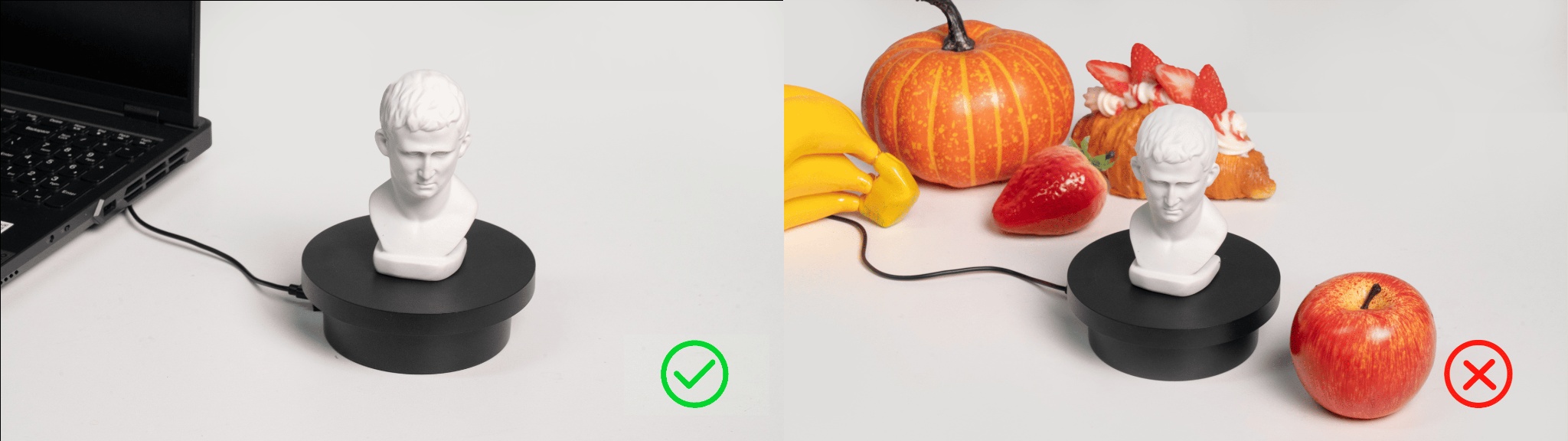
2) Connect the accessories: Use the turntable cable to connect the turntable to the computer port or power outlet, adjusting it to an appropriate rotation speed.
3) Check the object: Position the sample bust on the turntable, ensuring its surface is shadow-free (for reference only).
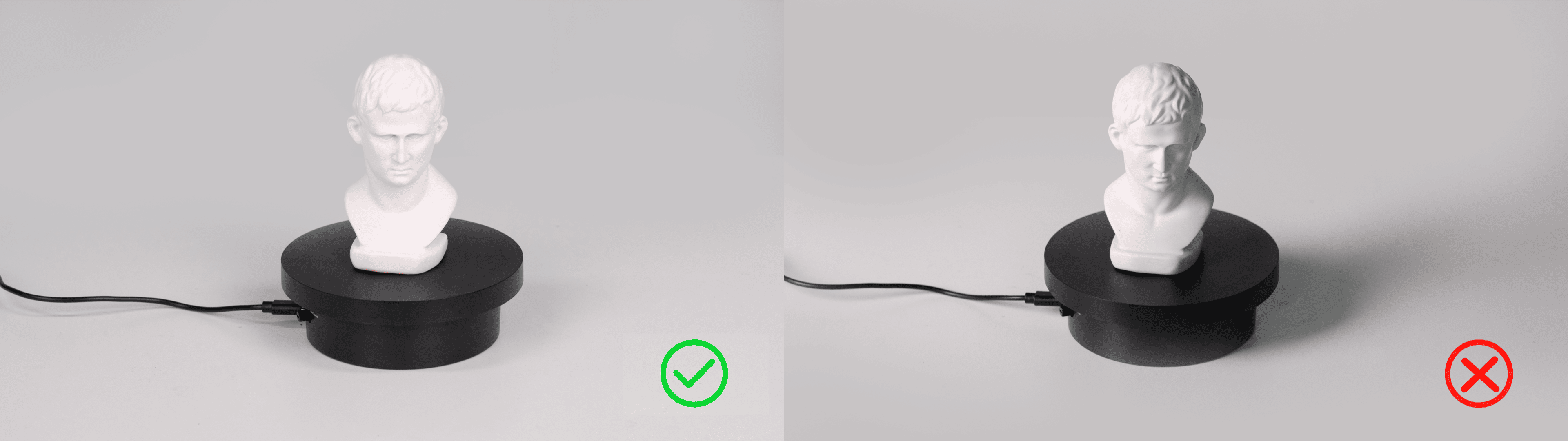
4) Adjust the scanner's height and angle to ensure the camera can fully capture the object.
¶ 7.1.2 Start Scan
¶ Create a New Scan
Click "New Scan" on the File page.
① For Tracking Mode, you can select Feature /Marker/Global Marker /Color. Select the available Scan Mode under the corresponding tracking mode. For more details about mode selection, please refer to 6. Mode Selection.
② Name the scan file, then click "Confirm" to enter the scanning interface.
¶ Scan Settings & Scan Control
① Select the required scanning accuracy and object type.
② Use the preview window on the left to make sure the object is inside the camera view.
③ Adjust the distance between the scanner and the object, ensuring the distance indicator bar shows green.
④ Adjust depth camera exposure so red and blue areas are minimized. Gray indicates the best setting.
⑤ Once settings are ready, click "Start."
⑥ You can pause anytime and check the scanning progress in the model display area. If the scan is incomplete, click "Start" again to continue.
¶ 7.1.3 Finish Scan
New users can use the following criteria to determine if scanning is complete:
1) Check if the model preview displays fully.
→ Ensure the real-time preview covers all surfaces of the target object, especially undersides, backsides, and crevices. Pause scanning to check for unfilled areas or structural omissions in point cloud or preview models. (Small holes can be manually filled during post-processing.)
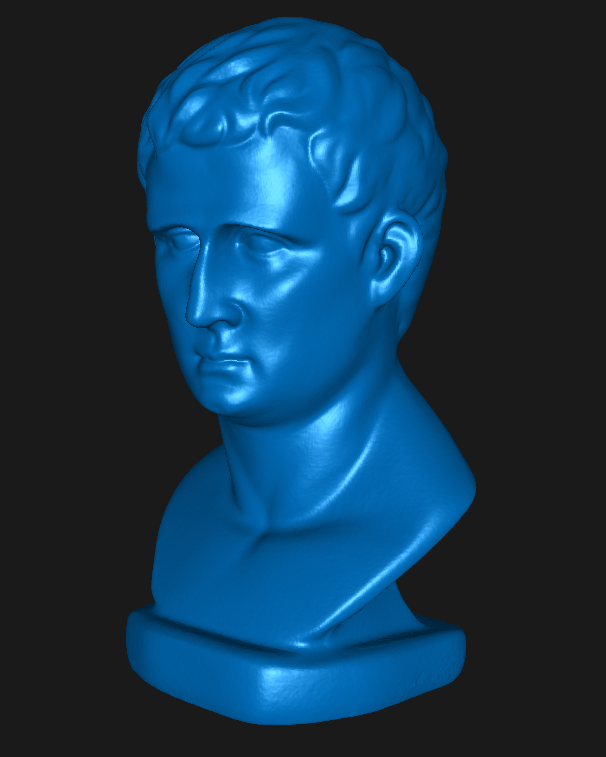
2) Check whether the model color/texture is uniform (if texture is enabled).
→ If texture is applied, check for obvious seams, missing color patches, or distortions.
-color scan.png)
Click "Finish" to complete the scan. If the model is incomplete, click the "Start" button to continue scanning.
¶ 7.1.4 Model Editing
In the model editing area, click the dropdown button of "One-click Editing" to use the software's recommended optimal parameter settings or manually adjust various parameters. Click "Apply" to automatically complete model processing.
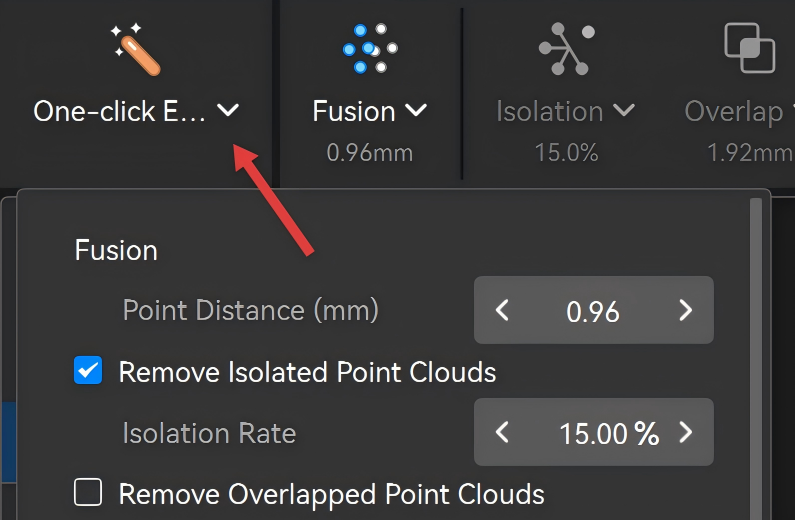
For more refined model processing, manually process the model as needed.
For more detailed operations and parameter settings, please refer to the Revo Scan 6 User Manual —Model Editing.
¶ 7.1.5 Export Model
Click "Export Model" and select the model state to export.
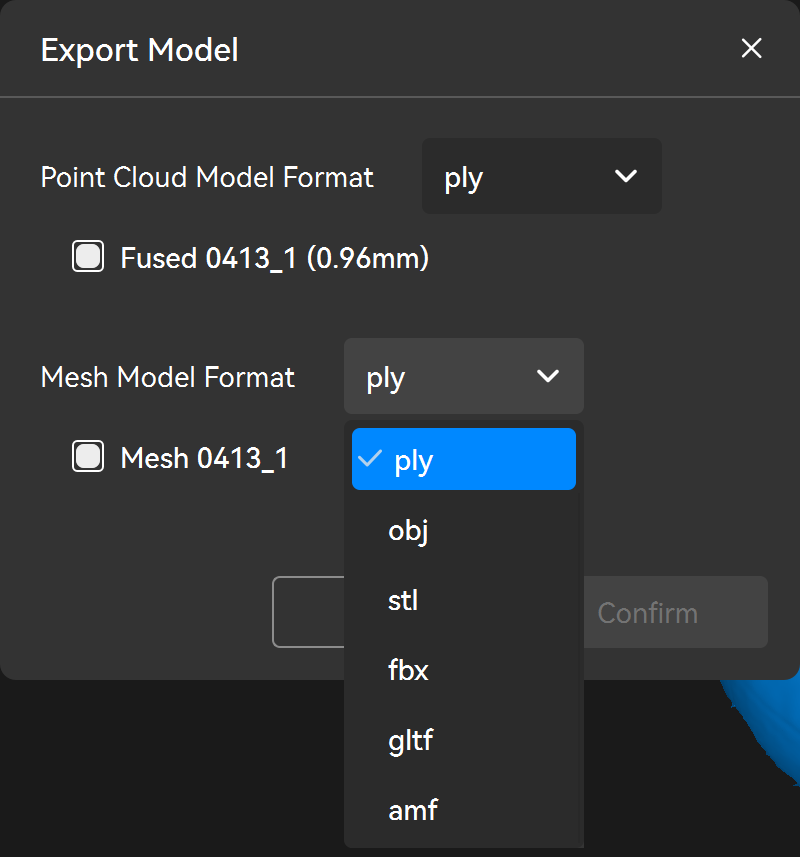
¶ 7.2 Laser Line Scanning
¶ 7.2.1 Preparation Before Scanning
① Handle the Object
- Markers are required if you choose Marker Tracking or Global Marker Tracking.
- Using Scanning Spray
- If you use Laser Line Scanning Mode for outdoor scanning under strong sunlight, it is recommended to purchase the Outdoor Blue Light Filters to improve the scanning results.
- For outdoor scanning, avoid rainy or windy weather to prevent water damage or reduced data accuracy from wet surfaces.
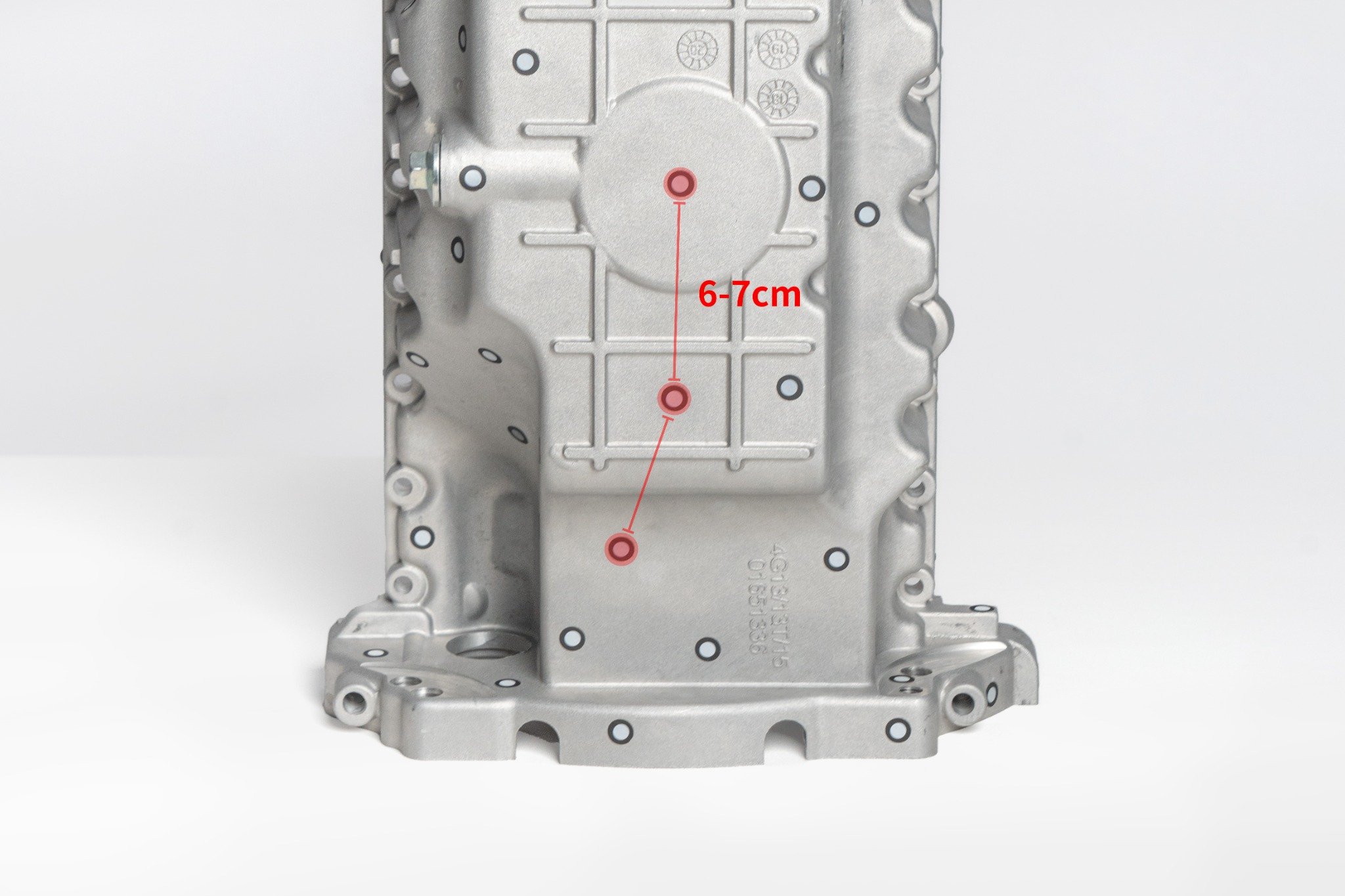
Don't use too many markers and keep the markers 6–7 cm apart, but ensure that at least 5 markers are placed irregularly per scanned frame.
For best accuracy, attach the markers to flat surfaces rather than curved ones. Also, please avoid using soft pads or cloths with markers.
You can also use the Marker Block Kit to create a more ideal and complete scanning environment.
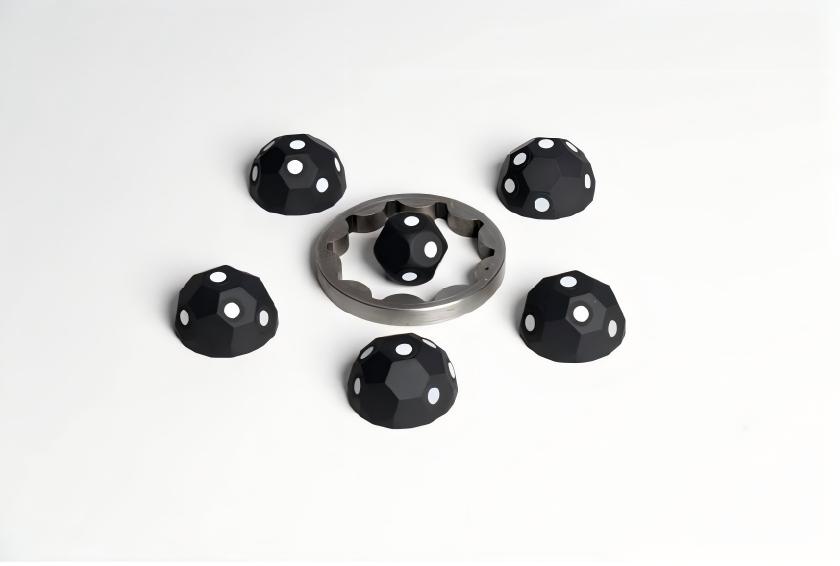
Marker Block Kit Quick Start Guide
- For transparent or specular objects (e.g., glass, stainless steel, electroplated surfaces), both line laser and structured light scanning require scanning spray.
- For dark reflective or metallic reflective surfaces (e.g., black paint, machined aluminum alloy), line laser scanning can be performed without spray.
Note: Scanning spray can be purchased from Revopoint's online stores.
For detailed object processing instructions such as how to use markers, please refer toScanning Tips--Handle objects Before Scan
② Set Up the Scanning Environment
1) Prepare the workspace: Ensure the scanning area is clean and free of clutter (for reference only).
2) Connect the accessories: Use the turntable cable to connect the turntable to the computer port or power outlet, adjusting it to an appropriate rotation speed.
3) Check the object: Position the sample bust on the turntable, ensuring its surface is shadow-free (for reference only).
4) Adjust the scanner's height and angle to ensure the camera can fully capture the object.
¶ 7.2.2 Start Scanning
¶ Create a New Scan
Click "New Scan" on the File page.
① Select"Marker" or "Global Marker". Select"Laser Line"in Scan Mode. For more details about mode selection, please refer to 6. Mode Selection.
② Name the scan file, then click "Confirm" to enter the scanning interface.
¶ Scan Settings & Scan Control
① Enter the scan interface. Select laser type: Single Line/Cross Line.
② Set Accuracy and Object Type.
③ Set the target point distance. Larger spacing scans faster, while smaller spacing gives finer detail.
④ Adjust the distance between the scanner and the object, ensuring the distance indicator bar shows green.
⑤ Adjust the exposure of the depth camera to ensure that the laser line is clearly visible in the depth camera preview window.
⑥ Once settings are ready, click "Start."
⑦ You can pause anytime and check the scanning progress in the model display area. If the scan is incomplete, click "Start" again to continue.
¶ 7.2.3 Finish Scan
New users can use the following criteria to determine if scanning is complete:
1) Check if the model preview displays fully.
→ Ensure the real-time preview covers all surfaces of the target object, especially undersides, backsides, and crevices. Pause scanning to check for unfilled areas or structural omissions in point cloud or preview models. (Small holes can be manually filled during post-processing.)
-incomplete.png)
Click "Finish" to complete the scan. If the model is incomplete, click the "Start" button to continue scanning.
¶ 7.2.4 Model Editing
In the model editing area, click the dropdown button of "One-click Editing" to use the software's recommended optimal parameter settings or manually adjust various parameters in the One-click Editing. Click "Apply" to automatically complete model editing.
For more refined model processing, manually process the model as needed.
For more detailed operations and parameter settings, please refer to the Revo Scan 6 User Manual —Model Editing.
¶ 7.2.5 Export Model
Click "Export Model" and select the model state to export.
¶ 7.3 Outdoor Scanning Tips
Both Line Laser and VCSEL Rapid modes support outdoor scanning.
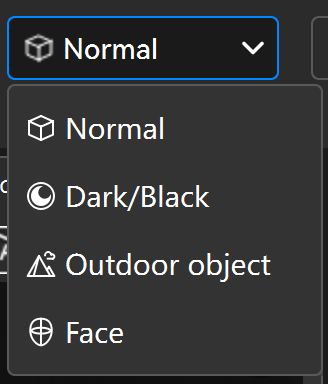
When scanning outdoors, select "Outdoor Object" in "Object Type".
¶ 7.5 More Tips
The preceding steps provide a foundational workflow. For enhanced results or efficiency, see the scanning tips below:
Scanning Tips:
2) Scanning Thin-Walled Objects
Parameter Settings:
Optimal results require proper parameter settings, which affect model integrity, clarity, and post-processing efficiency. Refer to 4.2 Scanning Parameters Settings in Revo Metro's user manual for guidance on detailed settings.
¶ 8. Mirroring
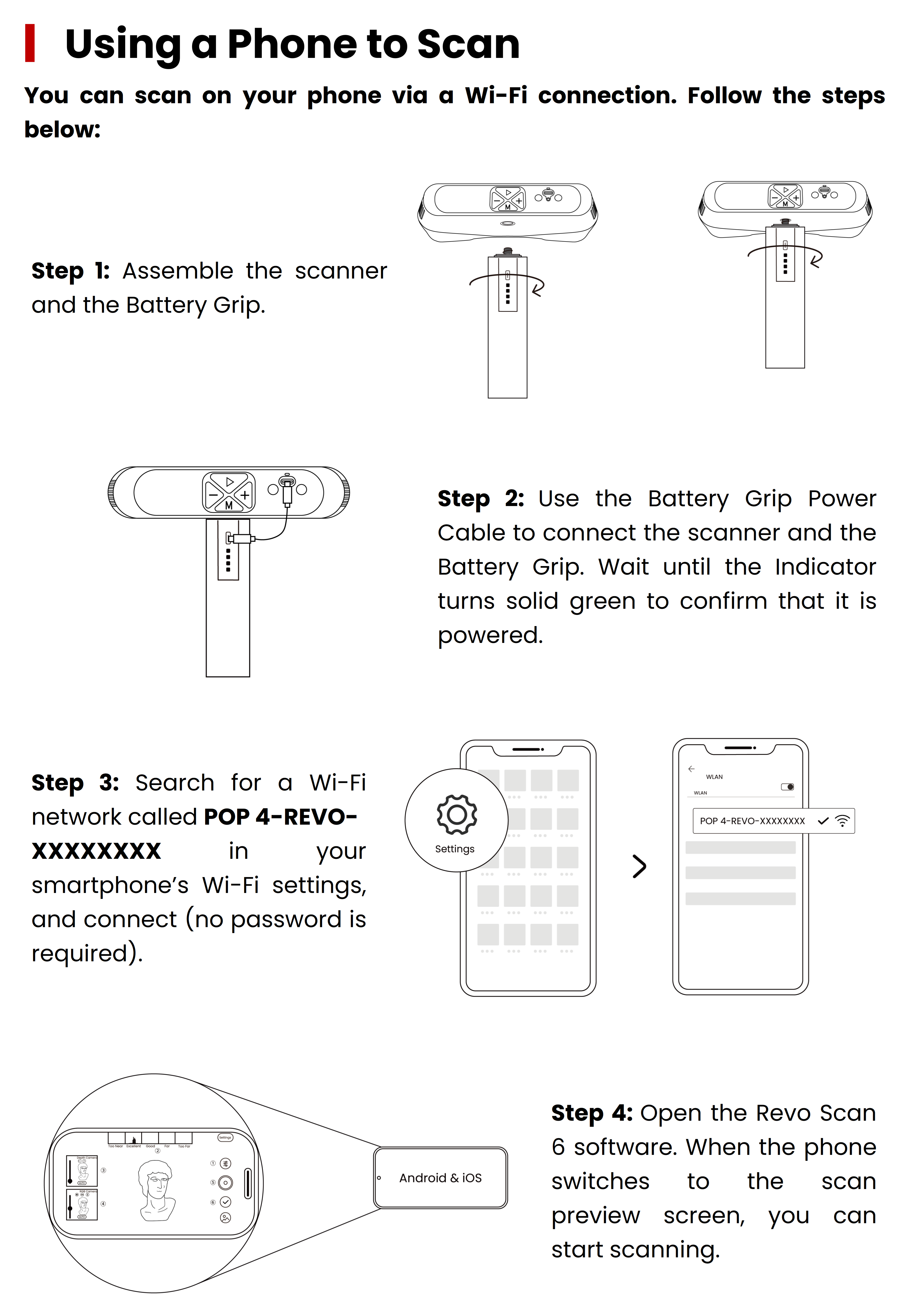
POP 4 also supports wireless casting to a phone via Revo Mirror:
① Visit the Revopoint official website and go to “Support - Download” menu to download and install Revo Mirror for both desktop and mobile.
② Mount the Battery Grip onto the scanner. Connect the Battery Grip to the scanner with the Battery Grip Power Cable.
③ Ensure both the computer and phone are connected to the network named "POP 4-REVO-XXXXXXXX." Open Revo Scan 6, wait for the scanner to connect and enter the scanning page, then click the mirroring button.
④ Tap the detected device to be mirrored in the mobile Revo Mirror app.
⑤ Follow the prompt on the PC to enter the PIN code to complete the initial pairing. Then, click “Enter Screen Mirror Mode” to control the scanning process.
For more information about software and screen mirroring, please refer toRevo Mirror User Manual.